Showing posts with label Gmail. Show all posts

10 GB of Free Storage in Gmail

Gmail now offers 10 GB of free storage, up from 7.56 GB. Google says that "the increase will take effect over the next 24 hours" and the reason for this sudden bump is Google Drive's launch. To get more Gmail storage, check the new Google Drive plans.


I find it strange that Gmail offers two times more free storage than Google's online storage service. While the files created using Google Docs apps don't count towards the free storage limit, there are many other files that can be uploaded. I also find it strange to see that Google Music can store up to 20,000 of music files for free and that's more than 80 GB of free storage.

Google Drive should be the place where you can find all your files. Right now, photos and videos are stored using Picasa Web Albums, music files are stored in Google Music, documents are stored in Google Docs/Drive and many files are stored in Gmail.

Share Embedded Images From a Gmail Message Using Google+

Google+ was built around sharing content and that's its main purpose, so many Google products started to provide a unified sharing experience powered by Google+.

Gmail allows you to share image attachments with other Google+ users by clicking the "Share" link, but what about the embedded images from a message? Now you can share them by mousing over the images and clicking the "share" button.


How to insert images into a Gmail message? Just drag and drop the images from your favorite file manager. It should work in the latest versions of Chrome, Safari and Firefox, assuming that you haven't disabled the rich text mode.

{ Thanks, Enrico. }

Gmail's People Widget Shows Recent Photo Attachments

Gmail has never included an option to manage the attachments from the messages you've received. You can't see a list of PDFs received this month or a list of photos sent by one of your friends. Gmail's advanced search features let you find the messages that include PDF files or photos, but you have to open each message to see the files.

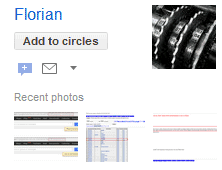
The people widget now shows more information about a contact: thumbnails of recent photos your contacts sent you. Clicking on a thumbnail opens the corresponding message.


For now, Gmail only shows the most recent 3 photos from a contact and doesn't let you see all of them. Maybe Gmail will integrate with the upcoming Google Drive and all the Gmail attachments will finally be searchable, easy to organize and share, just like Google Drive (Docs) files.

{ Thanks, Daniel. }

Gmail's YouTube Lightbox

When an email message includes includes links to YouTube videos, Gmail shows a gadget that lets you watch the videos inside Gmail. The YouTube preview feature graduated from Gmail Labs two years ago.

Gmail now tests another interface for previewing YouTube videos, but it only works for YouTube's email digests. When you click one of the thumbnails from the newsletter, Gmail shows the YouTube player in a "lightbox". For some reason, this only works when the "Apps Search" lab feature is enabled.


{ Thanks, Emanuele. }

Why Gmail Messages Are Marked as Spam

If you wonder why a certain message is flagged as spam by Gmail, you can find the reason from Gmail's web interface. When you open a message from the spam folder, there's a new section titled "Why is this message in Spam?" which offers "a brief explanation about why that particular message was placed in Spam".


Here are some of the explanations you might see:

1. "You previously marked messages from info@example.com as spam."

2. "You clicked 'Report spam' for this message."

3. "It's written in a different language than your messages typically use."

4. "It contains content that's typically used in spam messages."

5. "It's similar to messages that were detected by our spam filters."

6. "Many people marked similar messages as spam."

7. "We've found that lots of messages from info@example.com are spam."

8. "Be careful with this message. Our systems couldn't verify that this message was really sent by amazon.com. You might want to avoid clicking links or replying with personal information."

9. [Phishing] "Be careful with this message. Similar messages were used to steal people's personal information. Unless you trust the sender, don't click links or reply with personal information."

#4 and #5 are the most common explanations and they're rather vague. It's interesting to notice that the messages written "in a different language than your messages typically use" could be flagged as spam, but this shouldn't be the only explanation.


"We hope that this is not only interesting, but also helps you learn about scams and other harmful messages that Gmail filters out. Whether you prefer to leave your spam folder untouched or do some educational digging, the information will be there for you. And if you're interested in learning more, check out our new series of spam articles in the Gmail help center," informs Google.

{ Thanks, Venkat. }

Customize Gmail's Buttons: Replace Icons With Text

If you don't like that the new Gmail interface replaced most text labels from buttons with icons, there's an option that lets you disable this tweak. Just go to Gmail's settings page, select "text" in the "button labels" section and click "save changes".

Before:


After:


"Icons brought consistency across languages and solved problems with functions that had long names. Some people loved the new icons. Others, especially low vision users, found words easier to distinguish," says Google.

My main issue is that some of the Gmail icons aren't very helpful. For example, it's not obvious that the exclamation mark is an icon for reporting messages as spam. The icons are also small and monochromatic.

{ Thanks, Sterling. }

Gmail's New Loading Screen

Sometimes little things can make a difference. Gmail's updated loading screen makes Google's mail service look more like a native app and the transition to the actual interface is much smoother. The progress bar and the "loading" message are now centered and no longer look like an afterthought.


In the new Gmail interface you'll also see the loading page when you pick a different theme and that's annoying.

If you have a slow internet connection, you can enable the "inbox preview" lab feature to see a preview of the inbox while you wait for Gmail to load.

{ Thanks, Herin, James, John and Jonah. }

Open Mailto: Links Using Gmail in Google Chrome

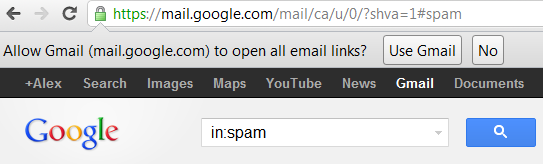
A few months after Google Calendar added support for handling webcal: links in Chrome, Gmail can now become the default handler for mailto: links. If you open Gmail in Google Chrome, you'll see an infobar at the top of the page that asks if you "allow Gmail to open all email links". Just click "use Gmail" and all the mailto: links (like admin@google.com) will open using Gmail, instead of a native mail client like Outlook or Thunderbird.


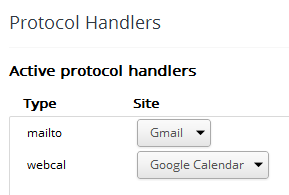
"Chrome allows web services to ask if you'd like to use them to open certain links. While most links generally take you to another page, some links can open programs and perform other actions. For example, mailto: links can open your email program and webcal: links can add events to your calendar program. These links are referred to as protocols and the programs they use are called handlers. Many web services these days, including Gmail and Google Calendar, can act as handlers," explains Google.

To edit protocol handlers in Chrome, open the settings page, go "under the hood", click "Content settings" and then "manage handlers". Another option is to open a new tab and paste this in the address bar: chrome://settings/handlers. By default, you'll see an almost empty page with no active handler. You can add protocol handlers from the sites that support this feature: Gmail, Google Calendar (and other services in the future).


Chrome is a little late to the party: Mozilla added support for protocol handlers in Firefox 3, back in 2008 and you can set Gmail as default handler for mailto: from the options dialog.

{ Thanks, Kevin. }

Gmail's YouTube Group

For some reason, Google added a YouTube contact group to many Gmail accounts. I currently have 82 contacts in the YouTube group and they have only one thing in common: they sent me or I sent them an email in 2006, 2007 or 2008. They don't have anything to do with YouTube and some of the email addresses couldn't be used to create Google accounts (for example, the Writely email address for importing documents).


The YouTube group can be renamed or deleted, but it's strange that it was automatically created. Gmail has some system groups for Google Latitude, Google Talk, Google Buzz, but they're hidden and can't be removed.

Do you see the YouTube group in your Gmail account?

{ Thanks, Katty and everyone who commented on Google+. }

No New Mail? Try Google+

What's the message displayed by Gmail when there's no message in your inbox? If you answered "No new mail! Want to read updates from your favorite sites? Try Google Reader", you are right. It was Google's subtle way to promote Google Reader.


Before Google Reader was released, Gmail's "inbox zero" message used to be: "No new mail! There's always Google News if you're looking for something to read."

Now that Google focuses on developing Google+, a modern version of Google Reader, Gmail's new message is: "No new mail! See what people are talking about on Google+." The links sends Gmail users to the "what's hot" section of Google+ which "highlights selected content thought to be exemplary, interesting, and appropriate: showing you serendipitous and diverse information".


From Google News to Google Reader and now Google+, Gmail illustrates three different ways to read news. Google News ranks and clusters articles from the web, Google Reader allows you to read news from your favorite sites, while Google+ lets you read the articles shared by the people you follow. From news that are important to everyone to news that are important to the people you trust.

Gmail's Shortcut for Inserting Hyperlinks

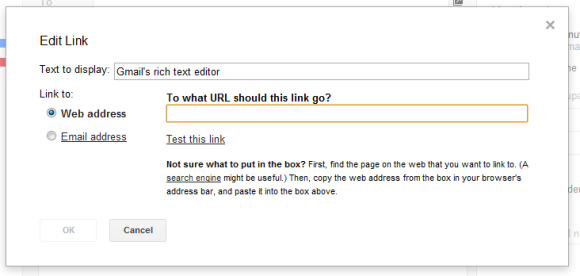
Less than 2% of the Gmail users have enabled keyboard shortcuts and actually use them, but that doesn't mean Google shouldn't improve them. Many people complained that Gmail's rich text editor doesn't have a shortcut for inserting hyperlinks and now it's available: Ctrl+K (or Cmd-K if you use a Mac).


The same shortcut is also used in Outlook, Microsoft Word, Google Docs and other apps. "Just select any text, and then press the Ctrl and K keys at the same time. A dialogue box opens where you can type a link," informs the Microsoft Word blog.

I wonder why Google doesn't offer the option to use the top search result for the text you've selected or at least pick one of the top results from the "edit link" box.

{ Thanks, Cougar. }

The Story Behind Gmail's Logo

If you've ever wondered who designed Gmail's logo, Kevin Fox has the answer:
Dennis Hwang designed the Gmail logo. At the time, Dennis designed virtually all of the Google doodles and he did a lot of the new logo work as well.

The logo was designed literally the night before the product launched. We were up very late and Sergey and I went down to his cube to watch him make it.

The initial version used the same font as the Google logo (Catull), but Catull has a very awkward 'a', so Dennis decided to use Catull for the 'G' to tie the brand to Google, then cast the others in a cleaner sans-serif (Myriad Pro, if I recall correctly).

Another ex-Googler, Douglas Edwards, confirms the story in his book "I'm Feeling Lucky: The Confessions of Google Employee Number 59":

Dennis Hwang spent the day before the launch coming up with ideas for a logo and trying to make it work in conjunction with the clown-colored Google brand. (...) Even after four years at Google, I found it astounding that one twenty-something guy was sitting alone at his desk, sipping tea and developing the main branding element for a product to be used by millions of people - the night before it was scheduled to launch.

New Google Accounts Require Gmail and Google+

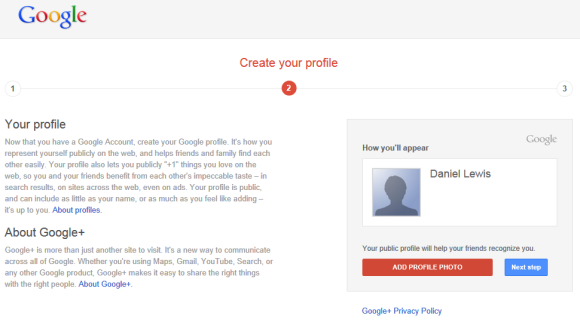
If you try to create a Google account from Google's homepage, you'll notice that Google redesigned the page, but that's not all. You'll now have to create a Gmail account, a Google Profile and you'll automatically join Google+.

Until now, creating a Google account was quite simple. You could either use an existing email address or create a Gmail account. The redesigned form includes new fields: name, gender (required for Google+) and mobile phone number (not required).
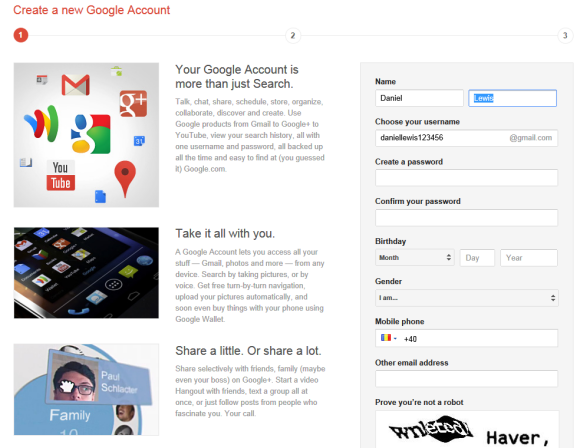


"Your Google Account is more than just Search. Talk, chat, share, schedule, store, organize, collaborate, discover and create. Use Google products from Gmail to Google+ to YouTube, view your search history, all with one username and password, all backed up all the time and easy to find at (you guessed it) Google.com," informs the page.

You can still delete your Google profile, the Google+ content and also your Gmail account.

New users no longer have to manually create a profile and join Google+, while Google found another way to increase the number of Google+ users (currently at 90 million) and the number of Gmail users (currently at 350 million). I've always wondered why Google never offered the option to create a Gmail account when you sign up for a Google account and now that's the only way to create a Google account.

Update: You can still use the old form if you know the URL or if you click "Sign up for a new Google Account" in Google Calendar, Blogger and probably a few other Google products.
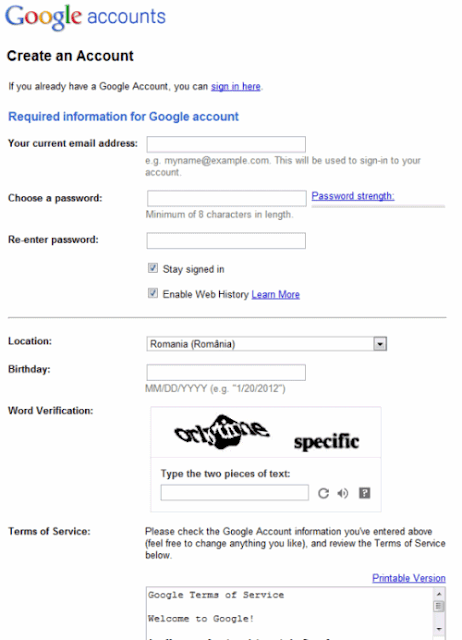


Google Docs, Google Sites and Google Groups use a different page that lets you sign up using a Gmail address or a different email account. Just click "use a different email" and you'll see the old form.
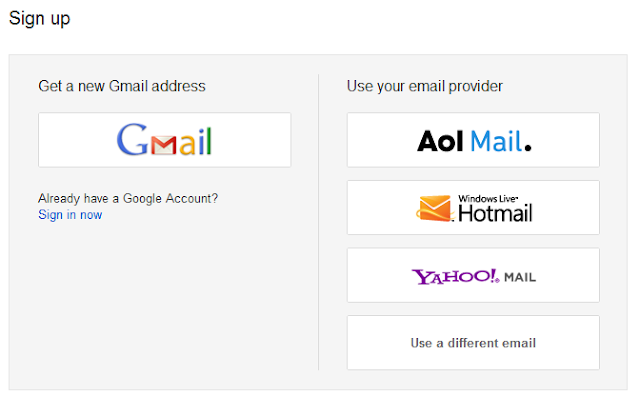

Update 2. A Google spokesperson sent the following statement: "We're working to develop a consistent sign-up flow across our different products as part of our efforts to create an intuitive, beautifully simple, Google-wide user experience. Making it quick and easy to create a Google Account and a Google profile enables new users to take advantage of everything Google can offer."

{ Thanks, Herin. }
Gmail Scribbles

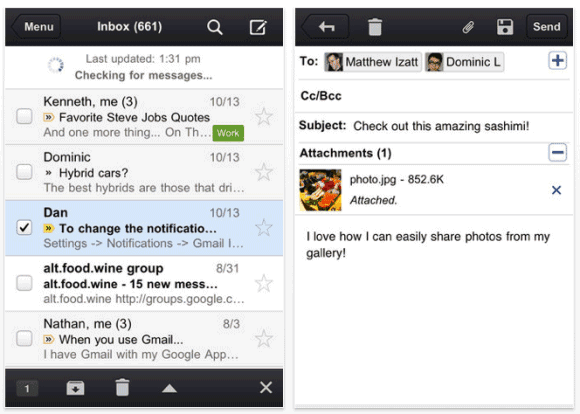
Gmail's app for iOS and mobile Gmail added a cool feature that's not even available in the desktop interface: Gmail Scribbles. "You can now open up a canvas and scribble a message that will be attached to your email. It's perfect for sending a quick sketch that is hard to express in words or adding a fun graphic to make your email more personal. Scribbles support different colors, brush sizes, lines, erasers and spray paint." Maybe Scribbles is just a sneak peek at an upcoming mobile version of Google Drawings.


Gmail 1.1 for iOS also changed the notification sound, added better support for nested labels and Google+ Circles. The settings page that was available in the mobile web app, is now included in the iOS app, so you can add a custom signature and a vacation responder.

Gmail Integrates With Google+

It looks like not only Google Contacts integrates with Google+. Gmail also added many features that make it easier to share files in Google+, add new people to your circles and find messages from these circles.

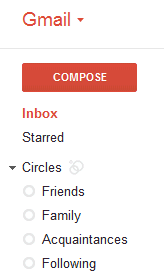
A lot of people complained that you can't find the messages sent or received by the members of a group. This feature is still not available, but you can restrict the messages to a circle. Gmail now displays the list of circles below the labels and you can use it to find mail from your family, friends, colleagues etc. It's obvious that groups are now less important than circles, even though I don't think they'll disappear.

"If you've spent time building your Google+ circles, you can now quickly use them to filter your mail, saving yourself from having to sift through that pile of daily deal emails and newsletters. You can see messages from all of your circles at once or from each individual circle. And if you want, you can show circle names on emails in your inbox. Contacts can also be filtered by circles, making it easier to view your social connections."


You can now add someone to a circle from the widget displayed in the right sidebar. There's also an easy way to share pictures from an email to Google+: just click "share" next to the attachment.


{ Thanks, Petros and Joost. }

Google Contacts Integrates With Google+

Gmail's contact manger started to include information from Google Profiles. You can also find your Google+ circles in the sidebar, below the list of groups.


By default, the data obtained from Google Profiles is displayed below the information you've entered, but you can combine them: go to a contact page, click the "More" dropdown and select "[Show external data] inline".

It's interesting to notice that the Google Profiles data is automatically added when you enter an email address associated with a profile. To remove this information, just delete the corresponding email address.

The latest features are also available at google.com/contacts, which has recently switched to the new Google Contacts interface, but you can find them in the old Gmail interface, as well.

{ Thanks, Scott, Filipe, Venkat, Yavuz, Shimmy, Zachary and Matt. }

Gmail's Hybrid iOS App

Two weeks after the embarrassing launch, Gmail's app for iPhone and iPad is back in the App Store. Google fixed a bug that broke one of the main features: notifications and that's the reason why the app has been temporarily removed from the App Store.

Gmail's "native" app is actually a wrapper for a new version of the Gmail web app, enhanced with a few features that integrate it with the operating system: basic push notifications, image upload and a new navigation menu. It's interesting that the new interface of the mobile web app is only available if you use the "native" app.


I've always thought that Gmail's mobile web app is much better than the native Android app, so it's a pleasant surprise to see that Google didn't develop a completely new app for iOS. This way, you'll always get the latest features and you don't have to wait until Google releases a new version.

Regarding notifications, the app only supports badges and sound notifications, so you won't see the banner notifications introduced in iOS 5. Hopefully, Google will address this issue in a future update.

"To try out the Gmail app today, install it from App Store on any iOS 4+ device. Those who already have the Gmail app released Nov 2 must uninstall or log out of the old app prior to installing the new app," suggests Google.

Gmail's New Look, Now Available

After almost two weeks since the last post about the new Gmail interface, you can now try it. Open Gmail and you should see a message at the bottom of the page that invites you to "switch to the new look".

Gmail's new look is based on the "Preview" theme, but it's much more than a theme. There are a lot of changes: Contacts and Tasks are now included in a drop-down menu below the Gmail logo, buttons like Archive or Label are only displayed when you select at least one message, there's a new settings menu that lets you change the display density, gadgets and the chat box are now resizable, there's a new interface for conversations, advanced search options are now displayed when you click the arrow in the search box and you can try HD themes.


For now, you can switch to the old interface from the settings menu, but Google says that this option will be removed soon.

{ via Gmail's blog }

A New Look for Gmail

A video from Google's YouTube channel (update: the video is now private, but there's a mirror here) introduces a new Gmail interface. It's based on the Preview theme that's already available in Gmail, but there are many other changes: an action bar that uses icons instead of text labels, a completely new interface for conversations, profile pictures next to contacts, a flexible layout that adapts to any window size, display density options like in Google Docs, resizable chat/labels sections, new high-definition themes and an updated search box that includes advanced options.


I don't see the new interface yet, but it will probably be available soon. It's interesting that there's an arrow next to "Mail" and the links to Google Contacts and Google Tasks are missing. Maybe you'll be able to use the arrow to switch to other Google services.


{ Thanks, Carlos. }

Gmail Tests a Huge Image Ad

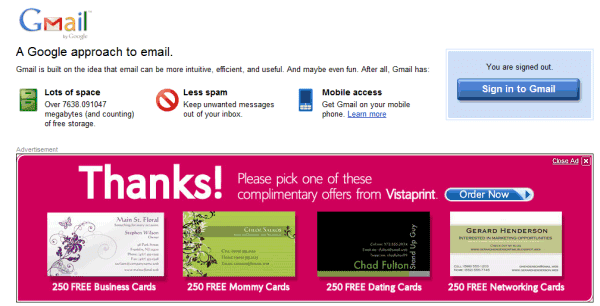
Who would have expected to see a giant image ad on Gmail's sign out page? For now, it's just an experiment and it's displayed when you log out from Gmail, but I bet that Gmail users won't be happy to see it when it will no longer be an experiment.

One of the great things about Gmail was that the ads were relevant and unobtrusive. The huge ad for Vistaprint is not relevant and it's really obtrusive. "With Gmail, you'll never see pop-ups or untargeted banner ads. Instead we display text ads and related links you might find useful and interesting." This was one of the top 10 reasons to try Gmail, but it was removed from this page.

A Gmail help page explains that "occasionally we may show a banner ad on the Gmail logout page. This ad is different from other ads in Gmail since it's not related to the content of your Gmail account. Instead, it's the same type of ad that appears on the YouTube homepage."

New York Times reported in May that "Gmail will begin allowing advertisers to use images. For example, an e-mailed offer for a ski package showing a skier on the slopes could be accompanied by an ad on the right side of the screen, showing a competing offer, replete with another skier coming down another slope. The image used in the ad would be static, not animated, and would be used only in cases where the e-mail message itself showed images."

{ Thanks, Gary. }

Labels

Web Search Gmail Google Docs Mobile YouTube Google Maps Google Chrome User interface Tips iGoogle Social Google Reader Traffic Making Devices cpp programming Ads Image Search Google Calendar tips dan trik Google Video Google Translate web programming Picasa Web Albums Blogger Google News Google Earth Yahoo Android Google Talk Google Plus Greasemonkey Security software download info Firefox extensions Google Toolbar Software OneBox Google Apps Google Suggest SEO Traffic tips Book Search API Acquisitions InOut Visualization Web Design Method for Getting Ultimate Traffic Webmasters Google Desktop How to Blogging Music Nostalgia orkut Google Chrome OS Google Contacts Google Notebook SQL programming Google Local Make Money Windows Live GDrive Google Gears April Fools Day Google Analytics Google Co-op visual basic Knowledge java programming Google Checkout Google Instant Google Bookmarks Google Phone Google Trends Web History mp3 download Easter Egg Google Profiles Blog Search Google Buzz Google Services Site Map for Ur Site game download games trick Google Pack Spam cerita hidup Picasa Product's Marketing Universal Search FeedBurner Google Groups Month in review Twitter Traffic AJAX Search Google Dictionary Google Sites Google Update Page Creator Game Google Finance Google Goggles Google Music file download Annoyances Froogle Google Base Google Latitude Google Voice Google Wave Google Health Google Scholar PlusBox SearchMash teknologi unik video download windows Facebook Traffic Social Media Marketing Yahoo Pipes Google Play Google Promos Google TV SketchUp WEB Domain WWW World Wide Service chord Improve Adsence Earning jurnalistik sistem operasi AdWords Traffic App Designing Tips and Tricks WEB Hosting linux How to Get Hosting Linux Kernel WEB Errors Writing Content award business communication ubuntu unik