Showing posts with label Google Reader. Show all posts

Smooth Scrolling in Google Reader

Google Reader's settings page has a new section where you'll find "experiments you can choose to opt-in and try out". It's like a small Google Reader Labs that only has a single experiment you can enable: smooth scrolling. This feature makes the transition between items smoother and it's especially useful in the expanded view.


While this feature is more difficult to find, you've probably noticed the colorful ball that's displayed when Google Reader loads new posts. The animation is one of the few colorful elements from the new Google Reader interface.


{ Thanks, Venkat. }

Google Reader's New Share Button

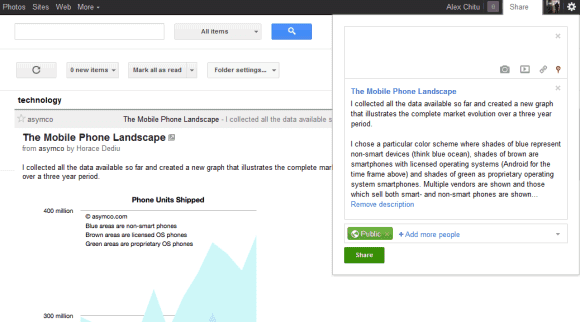
When Google Reader released the new interface, I complained that sharing a post takes too many clicks: you first need to +1 the post, then click the share box and finally click "share". Now it's easier to share a post: just click the new "share" button and click "share" once again in the modal dialog.


Another advantage is that you can use the old keyboard shortcut for sharing items: Shift+S. Unfortunately, you can't use keyboard shortcuts in the modal dialog, so you still need to click "Share".

Decoupling the "+1" button from the "share" button is a good idea and Google should adjust the code of the +1 widget to make this possible. "Liking" and "sharing" are two different actions and should be treated separately, especially considering that +1's are always public, while sharing can be limited to a few people or circles.

{ Thanks, Zachary and Herin. }

A Better Way to Share Posts in Google Reader

Brian Shih, a former Google Reader Product Manager, says that the latest Reader update is "a disaster". One of the reasons could be that most of the initial members of the Reader team left Google and the new team doesn't understand the goal of the product.

"It's as if whoever made the update did so without ever actually using the product to, you know, read something. Reader is a product built to consume information, quickly. We designed it to be very good at that one thing. G+ is an experience built around browsing (similar to Facebook) and socializing. Taking the UI paradigm for G+ and mashing it onto Reader without any apparent regard for the underlying function is awful and it shows," says Brian.

One of Brian's complaints is that it's a lot more difficult to share a post in the new interface. Instead of clicking "Share" or using a keyboard shortcut, you now have to click "+1", then click "Share on Google+", select your audience and then click the "Share" button. There's also a privacy downside: +1's are public, even if you only want to share a post with one or two people.

Fortunately, there's a way to share a post without first clicking +1, but it's not obvious. Just use the "share" box from Google's navigation bar.


{ via François }

Read Your Shared Items in Google Reader

The latest Google Reader update removed all the social features, including the section that allowed you to read the items you've shared. Fortunately, the shared items page is still available at http://www.google.com/reader/shared/username (replace username with your Gmail username) and you can subscribe to this page in Google Reader, but only if the page was public. Click "subscribe" and paste the URL of the shared items page. If you don't have a Gmail account, load the shared items feed in Reader, right-click "Your shared items" and copy the URL.


You can now use Google Reader's search box to find a post you've shared. Click the "All items" drop-down next to the search box, scroll down to the end of the list (or just press "End") and you'll find the shared items feed.

To unsubscribe from this feed, you need to go to the settings page, click "Subscriptions", type "shared items" in the search box and click the "unsubscribe button".

Google Reader's New Interface

The new Google Reader interface is finally here and it also brings some functional changes: all the social features are removed and replaced by a Google +1 button. It's important to note that clicking the +1 button only adds the page to your Google Profile and you need to click the "share on Google+" box to share the page with your friends.

This means that the "share" and "like" buttons have been removed, you can no longer follow other Google Reader users and you can no longer read their shared items inside Google Reader. Folders and tags can no longer be public, the blogroll widget and the associated public page will stop being updated, while discussions are a thing of the past.


"When you find interesting items on Reader, you can choose to share them on Google+ publicly, or with a certain circles or friends. You can also add a comment in the sharebox to your shared items. Your comment will show up along with the item you've recommended in the streams of those you've shared with. Adding a note when sharing an item is a great way to let people know why you find a particular item interesting, relevant, or funny. To share an item with a note, just click the +1 button from underneath the item. You'll then be given the option to include any comments you might have in the Google+ share box. Your +1 will be public, but your notes in the share box will be only show up for circles and friends you've selected," explains Google.

What happened to all the posts you've shared or liked until today? You can export them from Reader's settings page, along with the items from people you follow, your discussions, your followers and the list of people you follow. Google offers two exporting options: JSON Activity Stream and a custom Google Reader JSON format, but they're not very useful without a software that parses them.

Unfortunately, all the items +1'd from Google Reader are treated like any other pages and there's no way to read the posts shared by your friends in Google Reader. In fact, there's no way to create a Google+ circle for the people you've followed in Google Reader. The new interface doesn't even offer keyboard shortcuts for sharing posts: Shift+s, Shift+d and "l" no longer work. The integration with Google+ is just an afterthought, instead of a proper replacement for Reader's sharing feature.

Update: Mihai Parparita, who worked on the Google Reader team, puts the changes into perspective and says that "Reader is on its fourth social model", after using Google Talk contacts, allowing you to manage your friends from the Reader interface and integrating with Google Buzz.

Google Reader Will Integrate With Google+

A lot of people expect a redesigned Google Reader and the good news is that they won't be disappointed: a new interface will be available next week. Google Reader is not dead, but the new interface couldn't be released faster because the sharing feature had to be integrated with Google+.

My favorite feature of Google Buzz was that it automatically imported all the shared items from Google Reader and allowed your followers to discuss them. Now that Google Buzz will be discontinued, this feature will be available in Google+. Unfortunately, Google Reader will no longer have a standalone sharing feature, a separate list of followers and people you follow, a feed and a page for shared items. This is great if you are a Google+ user, since it simplifies sharing and makes Google Reader more consistent. If you don't want to use Google+, you'll still be able to share posts by email or using the "send to" feature, but these workarounds aren't very useful for sharing a large number of posts.


The takeaway is that Google+ is not a distinct social service you can easily ignore, it's a service that will be used for sharing photo albums, documents, videos, for posting blog comments and it will be very difficult to use Google without joining Google+ since, at some point, Google+ will be... Google itself.

"Many of Reader's social features will soon be available via Google+, so in a week's time we'll be retiring things like friending, following and shared link blogs inside of Reader. We think the end result is better than what's available today, and you can sign up for Google+ right now to start prepping Reader-specific circles. We recognize, however, that some of you may feel like the product is no longer for you," mentions Google's Alan Green. That's the reason why you'll be able to export your shared items, your starred and liked items, your list of friends from Reader's settings page.

Google Reader's sharing feature has always been difficult to use and the integration with Google+ will finally give Reader the opportunity to shine and show why it's still a useful service. I'm sure that a lot of users will complain that they can't use the old sharing feature, just like many YouTube users complained when Google migrated YouTube to Google Accounts. There's a lot of value in having separate services with their own accounts, sharing features and friends lists, but switching to unified accounts, unified profiles, consistent sharing features makes Google's services more useful because they work together, they combine their strengths and become easier to use.

Google Reader, Replaced by Google Sites in the Navigation Bar

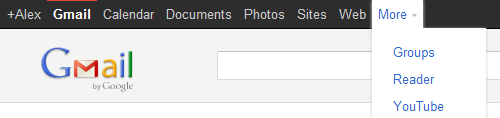
Google Reader users probably noticed that the feed reader has been replaced by Google Sites in the main navigation bar. To visit Google Reader, they need to click "More" and then click "Reader" in the list of Google services.


Unlike the last time when Reader was replaced by Google Sites, this time is not an accident. A Google employee explained that this is a permanent change.
While the link to Reader has moved, you can continue to access Google Reader under the "More" dropdown. Or, you can also set a specific bookmark to reader.google.com for one-click access. Depending your browser, try dragging http://reader.google.com right from this post onto the bookmark bar on your browser (usually below the URL bar).
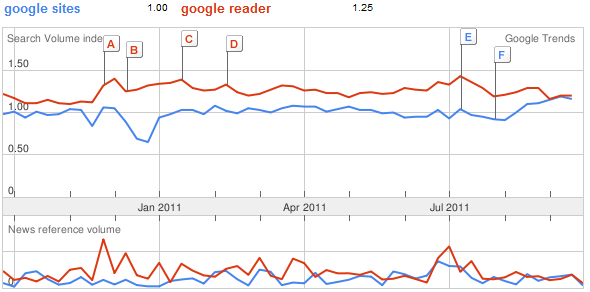
Google has usually made changes in the navigation based on the popularity of the services and it's likely that Reader's popularity is declining, while Google Sites gains more users. According to Google Trends, the queries [google reader] and [google sites] have almost the same search volume in the US.


Like Picasa Web Albums, Google Reader doesn't have a new interface based on Google+. The latest features added to Google Reader were comment moderation and integration with Google Buzz, a service that will soon disappear.

{ Thanks, Cougar. }

Google Reader for Android

Google Reader's mobile web app works really well and it has a great interface, so there aren't many reasons to create a native application for Google Reader. The main issue is that the application doesn't work offline, but this is a feature that could be easily implemented.

Instead of improving the mobile web app, Google decided to release a native Android app for Google Reader. The application supports multiple accounts, synchronizes your subscriptions and works offline. It also lets you search your feeds -- a feature that's inexplicably missing from the mobile web app.


Google Reader for Android uses infinite scrolling, has bigger touch areas, it integrates with the operating system's "send to" actions and has a neat trick in the settings that lets you navigate between articles using your phone's volume keys.

Google Reader's Web Page Monitoring to Be Disabled

Google Reader's blog announced that the feed generator for pages that don't have feeds will no longer be available starting from September 30. Google says that not many people used this feature, which is not surprising, considering that it's quite difficult to find it.

Google Reader's page tracking feature was useful to monitor the web pages that don't have feeds. For example, you could use it to find when Google changes the privacy policy, when Google Chrome adds new extension APIs or when there are new products in the Google Store.

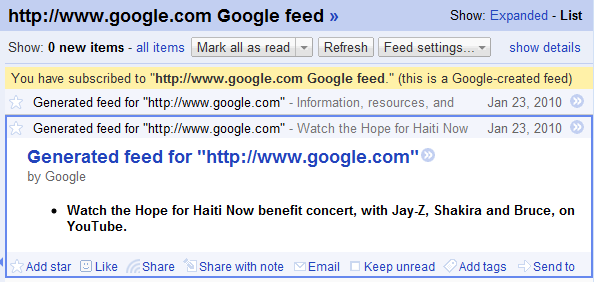
Unfortunately, Google Reader's feeds looked terrible. The title for each item was "generated feed for [URL]", the feature didn't detect new images and the feeds were updated when the new versions of the pages were added to Google's search index. Here's Google Reader's feed for google.com and here are the changes found by Page2RSS. Page2RSS found 8 changes in September, while Google only found one. Page2RSS has another important advantage: the service constantly monitors web pages and it's not tied to a search engine that indexes billions of web pages.

Bloglines to Be Discontinued

Bloglines, one of the most popular web-based feed readers, will no longer be available after September 30th. InterActiveCorp, the company that acquired the service in 2005, also owns the search engine Ask.com.
When we originally acquired Bloglines in 2005, RSS was in its infancy. The concept of "push" versus "search" around information consumption had become very real, and we were bullish about the opportunity Bloglines presented for our users. 
 
Flash forward to 2010. The Internet has undergone a major evolution. The real-time information RSS was so astute at delivering (primarily, blog feeds) is now gained through conversations, and consuming this information has become a social experience. As Steve Gillmor pointed out in TechCrunch last year, being locked in an RSS reader makes less and less sense to people as Twitter and Facebook dominate real-time information flow. Today RSS is the enabling technology – the infrastructure, the delivery system. RSS is a means to an end, not a consumer experience in and of itself. As a result, RSS aggregator usage has slowed significantly, and Bloglines isn't the only service to feel the impact. The writing is on the wall.


Most Bloglines users will probably migrate to Google Reader, which is now the most popular web-based feed reader. Unfortunately, Google Reader is still a niche service and this won't change in the future, so Google will eventually discontinue it. Instead of subscribing to feeds, people prefer to subscribe to other people. Google Buzz, Google Me and other social services will use Google Reader's back-end, while offering a people-centric experience.

Here's the Google Trends chart for RSS:

Comment on Any Google Reader Shared Item

Google Reader simplified the commenting feature so that anyone can comment on a shared item. "Up until now, someone had to be in a designated sharing group to be able to comment on a post, even if you were sharing publicly. To make things a lot simpler, we've made it so that if you can see a shared item, you can comment on it."

An important side-effect is that Google Buzz users can comment on any post shared in Google Reader, assuming that the shared items are connected to a Buzz profile. Since you can now comment on a Google Buzz post by replying to a message in Gmail, you could share a blog post in Google Reader and one of your Buzz followers could post a comment from in Google Buzz and then reply to your answer from Outlook, Thunderbird or from the Gmail mobile app for Blackberry.

If you don't like Google Reader's interface, there are desktop apps like FeedDemon, NetNewsWire or Liferea that import your Google Reader subscriptions and synchronize your actions with Google Reader. That means you could share a blog post in FeedDemon and someone could post a comment from Google Buzz or from an application that uses Google Buzz API.

While people can post comments to a Google Reader shared item in Google Buzz, you'll still see the comments in Google Reader. It's not really important where you find a great article and where you comment.


In other news, Google Reader will drop support for outdated browsers (IE6, Firefox < 3.0, Safari < 4.0, Chrome < 4.0) and will remove the offline mode powered by Google Gears starting on June 1. Why not remove offline support when Google Reader implements the same feature in HTML5?

Disable Google Reader's Social Features

If you don't like Google Reader's social features and you only want to read your subscriptions, you can now switch to the antisocial asocial Google Reader interface:

1. Go to Google Reader

2. Type this JavaScript code in the address bar:

javascript:antisocial('true')

3. Google Reader will reload and you'll see a simplified interface that removes the section "People you follow" and no longer shows shared items from your friends.


The setting is saved to your account, even if the toggle is not included in the interface. To go back to the standard interface, type this code in the address bar:

javascript:antisocial('false')

{ via George Moga }

Google Reader Adds Support for Video and Audio Tags

Google's feed reader started to support the video and audio tags from feeds. The only popular browser that doesn't support the two tags is Internet Explorer, but that doesn't mean that you'll be able to play videos without plug-ins in all the other browsers.

As the screenshot below shows, Firefox and Opera don't support the H.264 compression standard, so you can't play videos from sites that only use H.264. Even if video sites like YouTube or Vimeo started to test HTML5 players, they don't offer the option to embed videos using HTML5 tags.


{ via Google Reader's Twitter page. Thanks, François. }

Bookmarklet for Google Reader Play

Mihai Parparita wrote a bookmarklet that loads the feed for the current site in Google Reader Play. Mihai suggests to use the bookmarklet for web pages that have a lot of photos, like Flickr profiles or comic feeds.


Google Reader Play creates a slideshow from any feed or collection of feeds, but I don't think it's useful as a standalone app. Google Reader could detect photo feeds and integrate Reader Play as a new view.

Google Reader Play

Google Reader Play is a new way to read popular articles and an interesting interface for browsing web pages.

"In Google Reader Play, items are presented one at a time, and each item is big and full-screen. After you've read an item, just click the next arrow to move to the next one, or click any item on the filmstrip below to fast-forward. Of course, you can click the title or image of any item to go to the original version. And since so much of the good stuff online is visual, we automatically enlarge images and auto-play videos full-screen," explains Google.


The interface is optimized for posts that include images and for short blog posts. You can use keyboard shortcuts to navigate to the next post or you can start the slideshow view to only look at the images and headlines.

I was disappointed to see that Google Reader Play doesn't show your subscriptions. It only shows a list of recommended pages and Google uses your actions (starring, liking or sharing items) to improve the recommendations. If you want to read your subscriptions in Google Reader Play, use this URL:

http://www.google.com/reader/play/#stream

Track Page Changes Using Google Reader

Not all web pages offer feeds and sometimes it's useful to monitor web pages and find the latest information. A great service that offer this feature is Page2Rss, which provides a feed for each monitored web page.

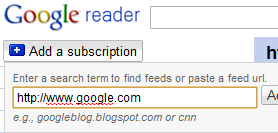
A similar feature is now available in Google Reader and it's cleverly integrated: click on "Add subscription", type the address of a web page and Google Reader will automatically generate a feed if it can't detect one.


"We provide short snippets of page changes to help you quickly decide if the page is worth revisiting and we're working on improving the quality of these snippets," says Brian Shih.

"Reader may not always detect updates to your content. Currently, only English-language content in HTML format is supported. In addition, updates to content in frames are not detected; nor are updates to content that requires sign-in to view," mentions a help center article, which also informs that webmasters can prevent Google from monitoring web pages by using the features that block Googlebot from crawling or caching web pages. This suggests that Google Reader's page monitoring uses data from Google's search index and the changes may not be detected quickly if the web page is not popular or it doesn't change often.

Since I rarely visit Google's homepage, generating a feed for google.com or for other international Google homepages is a great way to track all the doodles and the promotional messages.


For now, Page2RSS offers more features (posts have better titles, you can view a cached version of the page), but Google Reader is more reliable. For example, Page2RSS doesn't show the latest changes for google.com.

Tip: to find the URL of the feed generated by Google, click on "show details" and you'll find a URL like:

http://www.google.com/notificationservice/webchanges/webfeeds/11009120664050806769

Show Favicons in Google Reader

If you'd like to see a favicon next to each Google Reader subscription, you can now add this feature: go to the settings page and check "Show favicons for subscriptions". Another way to enable the feature is to click on the arrow next to "Subcriptions" and select "use favicons".


The feature is disabled by default. "We realize that not everyone wants their subscription list to turn into a multi-colored extravaganza, so we've made it into a setting that you can access from your subscriptions menu," explains Mihai Parparita.

Google uses a special service for obtaining the favicons instead of loading the images directly. For example, Search Engine Land's favicon is generated like this:

http://s2.googleusercontent.com/s2/favicons?domain=searchengineland.com

Google Reader's Personalized Ranking

Google Reader added a feature that tries to sort the posts from your subscriptions based on your interests. The option is called "sort by magic" and it's available in any Google Reader view, but it's not enabled by default. "Your personalized ranking is automatically generated. It takes into account your past reading behavior (including liking and starring), and global signals. This process is completely automated and anonymous," mentions an article from Google Reader's help center.

The ranking algorithm was designed to prioritize the posts from subscriptions you frequently read and the posts that are popular among your friends and other Google Reader users. "Try clicking the like button on things you think are important or enjoy reading, and we'll learn to put items like that first," suggests Google.


Another change is that the list of recommended feeds and the "popular items" feeds have been consolidated in the new "Explore" section. "We use algorithms to find top-rising images, videos and pages from anywhere (not just your subscriptions), collect them in the new Popular items section and order them by what we think you'll like best," explains Google.


Google Reader is now more clever, as it uses attention data to personalize your reading list based on your past behavior.

Integrated Interface for Google's Services

Integrated Gmail is a Firefox extension that adds Google Calendar and Google Reader to Gmail's interface. It's a simple way to switch between the three Google services without opening multiple tabs.

The extension is customizable, so you can add other Google services, reorder them and delete the ones you don't use. The interface for each service loads in a collapsible box and it's preloaded when you open Gmail.


You can add events or check your agenda while composing messages, read your feeds and chat with your friends from the same interface or copy some text from an email to a notebook.

The extension is not perfect, it might slow down browsing, but it's an interesting experiment and a good starting point for an official unified interface for Google's services. iGoogle, Google's iPhone interface and the support for gadgets in Gmail show that this idea has a great potential.

Google Reader's "Send to" Feature

Google Reader added a new feature that lets you share posts in other services: Twitter, Facebook, Digg. The feature is opt-in, so you need to go to the settings page, click on the "Send to" tab and pick your favorite services.


After selecting an item, use the keyboard shortcut Shift+T to quickly open the "send to" menu. Google Reader opens a new tab when you choose one of the "send to" options and most of the necessary information it's already pre-filled.


If your favorite service is not included in Google Reader's list, you can add it from the settings page by clicking on "Create a custom link". Here's how to add a "send to" option for Google Bookmarks.

Name: Google Bookmarks
URL: http://www.google.com/bookmarks/mark?op=edit&output=popup&bkmk=${url}&title=${title}
Icon URL: http://www.google.com/favicon.ico

And here's how to use AddToAny, a service that lets you select between many social sites.

Name: Add to Any
URL: http://www.addtoany.com/share_save?linkurl=${url}&linkname=${title}
Icon URL: http://www.addtoany.com/favicon.ico

Google Reader added two other options: you can now subscribe to sites added to your contacts' profiles and mark as read items older than a day, a week or two weeks. The second option is useful if you have a lot of unread items and you only want to read the recent news. As you probably know, Google Reader automatically marks as read the items that are older than a month and this can't be changed.

Labels

Web Search Gmail Google Docs Mobile YouTube Google Maps Google Chrome User interface Tips iGoogle Social Google Reader Traffic Making Devices cpp programming Ads Image Search Google Calendar tips dan trik Google Video Google Translate web programming Picasa Web Albums Blogger Google News Google Earth Yahoo Android Google Talk Google Plus Greasemonkey Security software download info Firefox extensions Google Toolbar Software OneBox Google Apps Google Suggest SEO Traffic tips Book Search API Acquisitions InOut Visualization Web Design Method for Getting Ultimate Traffic Webmasters Google Desktop How to Blogging Music Nostalgia orkut Google Chrome OS Google Contacts Google Notebook SQL programming Google Local Make Money Windows Live GDrive Google Gears April Fools Day Google Analytics Google Co-op visual basic Knowledge java programming Google Checkout Google Instant Google Bookmarks Google Phone Google Trends Web History mp3 download Easter Egg Google Profiles Blog Search Google Buzz Google Services Site Map for Ur Site game download games trick Google Pack Spam cerita hidup Picasa Product's Marketing Universal Search FeedBurner Google Groups Month in review Twitter Traffic AJAX Search Google Dictionary Google Sites Google Update Page Creator Game Google Finance Google Goggles Google Music file download Annoyances Froogle Google Base Google Latitude Google Voice Google Wave Google Health Google Scholar PlusBox SearchMash teknologi unik video download windows Facebook Traffic Social Media Marketing Yahoo Pipes Google Play Google Promos Google TV SketchUp WEB Domain WWW World Wide Service chord Improve Adsence Earning jurnalistik sistem operasi AdWords Traffic App Designing Tips and Tricks WEB Hosting linux How to Get Hosting Linux Kernel WEB Errors Writing Content award business communication ubuntu unik