Showing posts with label Image Search. Show all posts

Find More About a Google Image Search Result

Here's a simple way to learn more about a Google image search result without actually clicking it. Just drag the image to the search box and you'll be able to use "search by image" to find similar images and pages that include the image.


You can also mouse over the result and click "similar" or click the result and use the "search by image" feature, but drag-and-drop is faster. Another advantage is that you can edit the query and filter the results. For example, you can find pages that include the image and the word "hotel".

{ Thanks, Itamar. }

Google's Experimental Interface for Related Image Searches

Google's image search engine tests a new interface for related searches. Instead of only displaying a list of queries, Google also shows small thumbnails. Mouse over a query and you'll see 3 image results in a preview box.


{ Thanks, Pontus. }

Google Image Search Tests a New Tablet Interface

Google tests a new tablet interface for the image search engine. The new UI uses a carousel that lets you browse through the image results, just like the search app for iPad. Google no longer loads the corresponding websites and only focuses on the images.


A similar slideshow is available in the smartphone interface and it will be interesting to see if it will be added to the desktop interface.

Find WebP Images

WebP started as an experiment to create a better format for image files. Google's format has recently added a lot of features: animation, ICC profile, XMP metadata, transparency and more. "Photographic images typically encoded as JPEG can be encoded in WebP lossy mode to achieve smaller file size. Icons and graphics can be encoded better in WebP lossless mode than in PNG. WebP lossy with alpha can be used to create transparent images that have minimal visual degradation, yet are much smaller in file size. Animations compressed as GIFs can use animation support in WebP," explains Google.

WebP is the one-size-fits-all solution that can replace all the other image formats. Unfortunately, it's only supported by Chrome, Opera and Android's browser (Ice Cream Sandwich). You can also install the WebP image codec in Windows, use image editing software that supports WebP (GIMP, ImageMagick and more) or install a Photoshop plugin.

Now you can also find WebP images using Google's image search engine. Just add filetype:webp to your query or go to the advanced search page and select "WebP Files" in the "File types" section. Here's an example.


If you restrict the results to .com domains, Google only returns 1830 WebP images. There are 115 results for [Google], 7-9 results for [webp] and 88 results for [image].

{ Thanks, Herin. }

Google +1 Buttons for Image Search Results

When you mouse over a Google image search result, you'll see a +1 button that lets you recommend the image to the people that follow in Google+.


At some point, Google removed the social features from the image search engine and now only relies on the +1 button to provide social recommendations. The nice thing is that Google annotates image results with the relevant people that +1'd the images.


The social layer is no longer a separate section, but it's less comprehensive: the previous version included "pictures that your friends and other contacts have published publicly to the web on photo-sharing sites like Picasa Web Albums and Flickr". The "results from your social circle" were probably less relevant since Google generated the social circles from your Gmail contacts, Google Talk buddies, the people you follow in Google Buzz and Twitter. It's likely that the social circles were just an approximation of the circles you can create in Google+ and Google will phase out this feature.

New Advanced Image Search Page

Google updated the interface of the advanced image search page to look just like the corresponding Web search page. The redesigned page is easier to use, it groups the search options and includes some of the options that were only available in the sidebar.


Here's the old UI:


Why use the advanced search page instead of using the sidebar? Some of the options aren't available in the sidebar: restricting the results to a filetype, finding Creative Commons images, finding images from a domain or from a country.

There's one feature that's no longer available in the new interface. Can you find it?

Google Indexes Images a Lot Faster

Google Image Search used to have an index that wasn't updated too often. At some point, Google started to include images from Google News articles, so you could find images from recent events.


Now Google Image Search's index updates in real-time for many pages, just like the Web Search index. A few minutes after publishing a post, I was really surprised to see that an image from the post was already indexed by Google.


A search for [cartoon] restricted to the past hour returns 41 images and not all of them are from news articles and blog posts. Google Image Search still doesn't index all the images as soon as the pages are indexed by Google, but the improvements are noticeable.

Google Image Search Shows More Information About Photos

Google's image search engine started to show additional information about photos after clicking the results. The landing page's sidebar includes EXIF data: camera, settings, focal length, flash usage and exposure bias.

"Additional details are found from within the image file, often saved there by the digital camera that took the picture or the application that generated the image. This data can also be manually added or changed after the image has been created. Google doesn't create or change this data in images created by others. The data is saved using the Exchangeable Image File Format (EXIF) specification and can include details about the type of camera that took the image, the camera settings (like aperture, focal length, exposure length, and flash settings), and the copyright and usage rights associated with the image by the person who created or edited the image," explains Google.

Another change is that you can click "more sizes" for other versions of the image and "similar images" for visually related images. The sidebar also includes the search result's snippet.


The sidebar can also include a list of related searches, which offer a lot of information about the image and help you find similar images:


Google should also add links to the previous and the next search result so that you don't have to go back to the list of results.

Find Recent Images in Google Image Search

Google Image Search added a filter that lets you restrict the results to the pages created in the past week. Just click "past week" in the left sidebar and you'll see a list of recent images that include labels like "20 hours ago" or "5 days ago" to show how recent they are. Google's image search engine shows the same labels even if you don't restrict the results to recent images.


The interface doesn't let you customize the date range, but you can edit the URL and replace "qdr:w" with "qdr:h" (past hour), "qdr:h20" (past 20 hours), "qdr:d" (past 24 hours), "qdr:d2" (past 2 days), "qdr:w2" (past 2 weeks), "qdr:m" (past month), "qdr:y" (past year). Another trick you can try is to type your query in Google Web Search, use the date filters from the sidebar and then click "Images" in the vertical menu. Custom date ranges don't work in Image Search yet.

Here are some examples: Beijing photos from the past year, wedding photos from the past month, Android-related images from the past 2 weeks, Tour de France photos from the past week. It's important to keep in mind that the photos may not be so recent, but they're included in recent articles, blog posts and other Web pages.

The nice thing about the "recent images" filter is that you can combine it with other advanced filters. You can sort the images by subject and restrict the results to recent images, find images that have a certain size or a predominant color and they were uploaded in the past year, find recent Creative Commons images or generate a list of recent images from a site (e.g.: cnn.com).

Find Similar Images from a Site

Google Image Search has a nifty feature that was added a couple of months ago, but it's not so easy to find. If you restrict the results to a site and click "similar" next to one of the images, Google will only show similar images from that site. For example, if you search for [paris site:wikipedia.org] and click "similar" next to a photo of the Eiffel Tour, Google will show pictures of the Eiffel Tour and other similar monuments from Paris, but only if they are included in a Wikipedia page.


It's a great way to explore a site and group related images when it's difficult to type a precise query. The top results provided by the Similar Images feature are much better than the results for [monuments in Paris site:wikipedia.org], where you can find maps, flags, logos.


It's important to note that Google Image Search's site: operator no longer takes into account the URL of the image, so if a blog includes an image from Flickr, you'll still be able to find the image when you restrict the image results to the blog's domain or subdomain. "In the past, the [site:] operator filtered based on the image URL, not based on the URL of web pages linking to the images. Now, the operator will run your search over web sites that include images, no matter where the images themselves are hosted, which removes a lot of noise from your results and gives you more control over what you're searching for."

Google Instant for Image Search

Google Instant is now available for image search results, but only as an experimental feature. After you enable "Instant on Images", Google will start to autocomplete your queries and show image results before you finish entering the query. It's a great way to try different queries and see the results almost instantly.


Unfortunately, there are some limitations that make this feature less useful. "Search by Image will not work if you opt into this experiment. Also, Instant on Images is available only if you already have Instant on Web. Finally, this experiment is enabled only for the Images search result page, not on the Google Images home page."

You can try this feature without joining Google's experiment: just append &esrch=ImagesInstant::PublicOptIn to an Image Search URL, like this or bookmark this page.

Google also added an experiment for Voice Search, which allows you to try the feature before it's available for you. Voice Search only works in Google Chrome 11+.

Google says that you can't select multiple experiments at the same time, but I've managed to enable both Voice Search and Instant on Images. For some reason, you won't be able to use Search by Image when you enable Voice Search, even if Instant on Images is disabled.

Google Adds Voice Search, Visual Search and Results Prerendering

Two of the most important Google mobile services: voice search and visual search will now be available from your computer.

Voice search, a feature that's built into Android, also works in Google Chrome and allows you to search using your voice. Chrome added support for the Speech Input API back in April and it's the only browser that implemented the API. Right now, Chrome's speech input feature is only available for English.

"We first offered speech recognition on mobile search, but you should have that power no matter where you are. You should never have to stop and ask yourself, 'Can I speak for this?' — it should be ubiquitous and intuitive. So we've added speech recognition into search on desktop for Chrome users. If you're using Chrome, you'll start to see a little microphone in every Google search box. Simply click the microphone, and you can speak your search," explains Google. The feature is gradually rolled out, so you may not see it yet.


Google Goggles is a full-fledged visual search engine that's trapped in a mobile application. But why do you have to buy a smartphone to use Google Goggles when you could simply upload an image to Google and find related pages and images on the Web? "Search by Image" does more than TinEye, the "reverse image search engine" that lets you find an image on the Web.

"Google uses computer vision techniques to match your image to other images in the Google Images index and additional image collections. From those matches, we try to generate an accurate 'best guess' text description of your image, as well as find other images that have the same content as your search image. Your search results page can show results for that text description as well as related images," mentions Google.

You can drag and drop an image to the search box, paste an image URL in the search box or click the camera icon and upload an image. Google generates a hybrid results page that shows both related images and Web search results for the equivalent text query.


Google also a developed two extensions for Chrome and Firefox that let you right-click on an image and use it as a query. "With these extensions, you can initiate a search on Google using pictures on the web. You can discover photos of places, learn more about art pieces, identify landmarks, and more."


While voice search and visual search are useful, the most impressive search feature launched by Google today is Instant Pages. The new feature only works in Chrome 13+ (available in Canary/Dev Channel and soon in beta), but it will radically improve your search experience. Chrome prerenders the top search result if it's likely that you will select it, so you no longer have to wait for the page to load. You might remember a feature called "prefetching" that was first supported by Firefox. Prerendering is a lot more powerful than prefetching.

According to a Chrome developer, "prefetch is Firefox style prefetching of resources specified (just populating the cache). In Chrome, with prerender, we don't just download the URL specified, but render the whole page including running all the JavaScript and downloading and rendering all the embedded resources."

For most users, Instant Pages will look like magic. They'll search for [nytimes] or [amazon], click the first result and be surprised to see that the page loads instantly. Google says that this feature saves 2-5 seconds on a typical search.


But Chrome's prerendering is not limited to Google searches. Any Web developer can use it by inserting a link element with a special value for the "rel" attribute. "Sometimes a site may be able to predict with reasonable accuracy which link the user is most likely to click on next -- for example, the 'next page' link in a multi-page news article. In those cases, it would be faster and better for the user if the browser could get a head start loading the next page so that when the user clicks the page is already well on its way to being loaded," suggests Google.

More Pictures in Google Search

When you type a query that's popular in Google Image Search, Google's Web search engine shows a list of the most relevant images in an OneBox result. If you add "pictures", "images" to your query, the OneBox now includes a lot more images.

"If we detect that your query has 'high image intent' (meaning, we're pretty sure you're looking for images) we'll start showing more images on the page. If you add words like 'photos', 'pictures', and 'images' to a query, that means you're probably not looking for a blog post or video. Showing more images on the main search results page makes it just that much faster to find the image you're looking for," informs Google.


Another change is that Google will show a larger thumbnail when you mouse an image from the OneBox, just like in Google Image Search. The OneBox result now looks like the first page of images search results, but it's interesting to notice that the ranking is slightly different.

Google Image Search in SSL

Probably the most important missing feature in Google SSL Search was image search. Now this feature is available, but there's a drawback: the page that shows a bigger image preview doesn't use SSL.


Google's encrypted flavor supports most of the features of the regular Google site. The left side of the navigation bar is still missing, you can't use Google Instant and the Wonder Wheel, but hopefully these features will be added in the near future.

Google Chrome has recently implemented a feature called SSL False Start which "reduces the latency of a SSL handshake by 30%". SSL sites load slower and one of the reasons is that SSL handshakes are more CPU intensive, use more network round-trips and more packets.

Google Image Search Clustering

Google Image Search added a new feature that lets you group images by subject. Instead of showing images related to different topics in a single view, Google's image search engine finds the most relevant related searches and shows the top results for each category. For example, when you search for [dog], Google shows the results for [german shepherd], [golden retriever], [great dane], [pug dog], [boxer dog], [rottweiler dog], [border collie] and more. Unfortunately, the clusters for [cat] aren't that great: [funny cats], [cute cats], [cats and kittens], [fat cat], [lol cats].


"Sorting gives you a new way to start your search by exploring categories visually. If you need a particular image, like a picture of coffee for a presentation, sorting can help you hone in on exactly what you're looking for. Searching for broad topics sorted by subject, like the 1940s or Sydney, allows you to explore and learn visually," explains Google.

You only need to select "images" from the Google sidebar and click "sort by subject". By default, Google still sorts the results by relevance.

Google Highlights Recent Image Search Results

Google started to index images a lot faster and it now even highlights recent results by showing a small label like "1 day ago" or "22 hours ago" below the image. You can't yet restrict the results to recent images, but I'm sure that this feature will be available in the near future.

Here's an example of a query that returns many recent results. It's easy to notice that not all the results are from news sites, so the images aren't from Google News.

Google Docs, Image Search and Copyright

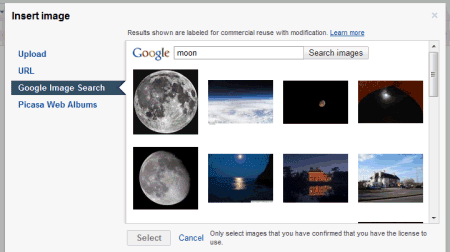
Google Docs lets you pick Image Search results and add them to your documents. That's a good thing, but this feature could have been better thought out.

Google restricts the results to images licensed as Creative Commons that can be used commercially and that can also be modified. These restrictions aren't always necessary, since not all documents are used for business purposes. Google also recommends to "only select images that you have confirmed that you have the license to use", but it doesn't link to the pages that included the images. Google doesn't even include a small caption next to the image with links to the Creative Commons license and the original web page.


While this feature makes it easy to add image search results to your documents, it doesn't encourage users to visit the web pages that embedded the images or to give credit to the image creators because it's quite difficult to find these pages. You need to visit Google Image Search, type your query, restrict the results to images "labeled for commercial reuse with modification" and find the image you've previously picked. That's a lot of unnecessary work.

Google Image Search Indexes SVG Files

Last year, Google announced that it started to index SVG files, but the results were only returned by the web search engine. "SVG is an open, XML-based format for vector graphics with support for interactive elements. We're big fans of open standards, and our mission is to organize the world's information, so indexing SVG is a natural step. We index SVG content whether it is in a standalone file or embedded directly in HTML," explained Google at that time.

Now you can find SVG files in Google Image Search by restricting the results to this filetype in the advanced search page or by using the filetype operator. Here's an example: [molecule filetype:svg]. If you restrict the results to Wikipedia, Google returns 57,300 SVG files.


Most browsers can render SVG markup, but there are at least two important exceptions: Internet Explorer (IE9 will add support for SVG) and Android's built-in browser.

Google Image Search Lets You Find More Sizes for an Image

Google Image Search added a feature launched by Bing in March: showing more sizes for each result. If you mouse over an image, there's a new option called "more sizes" that lets you find other versions of the same image. This is useful if you want to find higher-quality version of an image or if you want to list all the sites that include a certain image.


Most likely, Google uses the same technology that lets you find similar images, but restricts the results to images that are almost identical if you ignore the resolution or some minor editing.

A similar service is TinEye, a search engine that finds different versions of an image you upload. "TinEye is a reverse image search engine. It finds out where an image came from, how it is being used, if modified versions of the image exist, or if there is a higher resolution version."

Google Image Search Bugs

The most significant Google Image Search redesign comes with many useful features and a lot of bugs.

If you type a query in Google Image Search, click on the search button, scroll the page, click on the Google logo, type another query and select the "images" option, Google scrolls to a random part of the page. For example, it could scroll to the page 57.


Another issue is that Google's large thumbnails for PNG files are sometimes pixelated JPEGs.


Clicking on the "more" link in Google's sidebar refreshes the page and doesn't show additional Google services. When you go back to the results page after clicking on the results, you need to wait until Google scrolls to the right position and some of the images are loaded again. Scroll the results page, resize the browser's window and you'll notice that Google readjusts the images and jumps to the top of the page.

The new interface has too many bugs and should have been tested more thoroughly before being released. Google offers an option to switch to the previous version at the bottom of the page, but it's not persistent.

{ Thanks, François Beaufort. }

Labels

Web Search Gmail Google Docs Mobile YouTube Google Maps Google Chrome User interface Tips iGoogle Social Google Reader Traffic Making Devices cpp programming Ads Image Search Google Calendar tips dan trik Google Video Google Translate web programming Picasa Web Albums Blogger Google News Google Earth Yahoo Android Google Talk Google Plus Greasemonkey Security software download info Firefox extensions Google Toolbar Software OneBox Google Apps Google Suggest SEO Traffic tips Book Search API Acquisitions InOut Visualization Web Design Method for Getting Ultimate Traffic Webmasters Google Desktop How to Blogging Music Nostalgia orkut Google Chrome OS Google Contacts Google Notebook SQL programming Google Local Make Money Windows Live GDrive Google Gears April Fools Day Google Analytics Google Co-op visual basic Knowledge java programming Google Checkout Google Instant Google Bookmarks Google Phone Google Trends Web History mp3 download Easter Egg Google Profiles Blog Search Google Buzz Google Services Site Map for Ur Site game download games trick Google Pack Spam cerita hidup Picasa Product's Marketing Universal Search FeedBurner Google Groups Month in review Twitter Traffic AJAX Search Google Dictionary Google Sites Google Update Page Creator Game Google Finance Google Goggles Google Music file download Annoyances Froogle Google Base Google Latitude Google Voice Google Wave Google Health Google Scholar PlusBox SearchMash teknologi unik video download windows Facebook Traffic Social Media Marketing Yahoo Pipes Google Play Google Promos Google TV SketchUp WEB Domain WWW World Wide Service chord Improve Adsence Earning jurnalistik sistem operasi AdWords Traffic App Designing Tips and Tricks WEB Hosting linux How to Get Hosting Linux Kernel WEB Errors Writing Content award business communication ubuntu unik