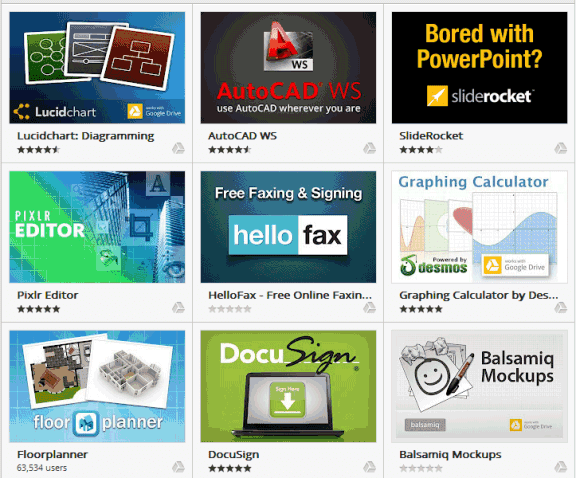
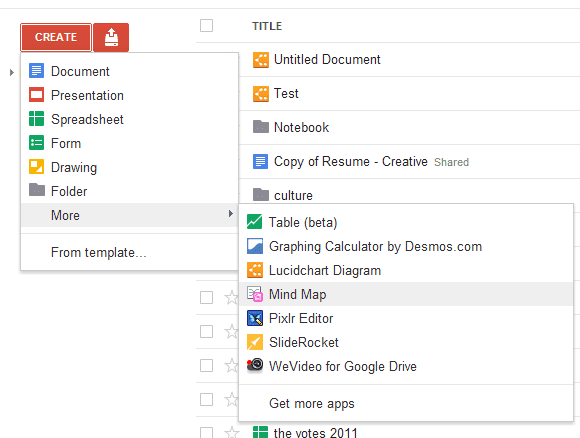
One of the most important Google Drive features is the support for third-party apps. Now you're no longer limited to Google's word processor, spreadsheet editor, presentation app and you can use web apps developed by other companies.
Google released a SDK for Google Drive apps and there are already 18 apps that use it. Users are required to install a Chrome app from the Chrome Web Store for each Google Drive app, but they don't have to use Chrome. Google's dev blog informs that "Drive apps are distributed from the Chrome Web Store and can be used with any modern browser." I've managed to install apps in Firefox and Opera, but not in IE9.
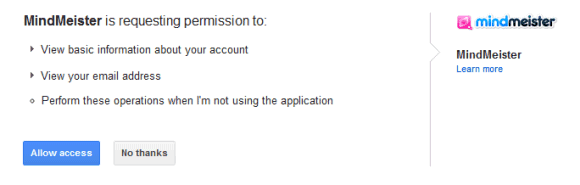
To integrate a third-party app with Google Drive, the app sends you to a page that asks for your permission. The authorization process fails if you load the page without installing the Chrome Web Store app. As Google says, "apps will not have any API access to files unless the app has been installed in Chrome Web Store." Chrome apps are only used to allow the third-party apps to use the Drive API, but they can be uninstalled immediately after they're installed and all the features will work in Chrome and any other browser.
At the moment, Drive apps don't integrate with Chrome, but that's likely to happen in the future. Chromebooks would be a lot more useful if you could sync files with Google Drive and open them using web apps.
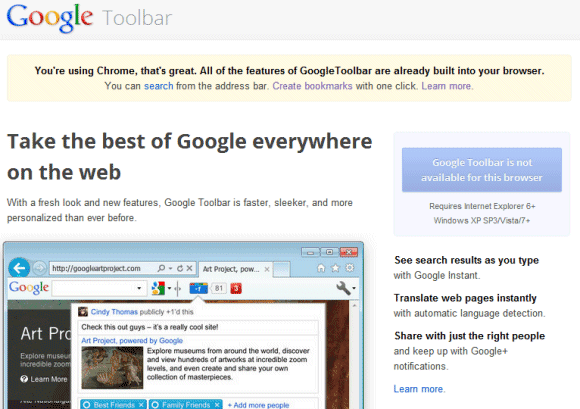
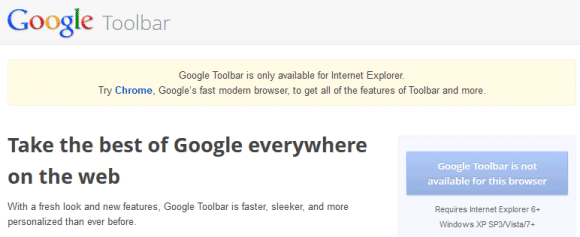
Now that Google Toolbar is no longer available for Firefox, you can only install it if you use Internet Explorer. If you visit Google Toolbar's site using Chrome, Google shows an interesting message: "You're using Chrome, that's great. All of the features of GoogleToolbar are already built into your browser. You can search from the address bar. Create bookmarks with one click."
If you use Firefox, Google Toolbar's homepage suggests you to download Chrome if you want "to get all of the features of Toolbar and more".
Obviously, that's an inaccurate message since there are many Google Toolbar features that aren't built into Chrome. Here are some of them:
1. searching the current site
2. highlighting the search terms on the page you're visiting
3. changing the Google search site (maybe you are in France and want to use Google.com instead of Google.fr)
4. preserving the query in the search box and switching to other Google services. For example, you can go from Google Search to Google Scholar without losing the query
5. showing the PageRank of the page
6. spell checking powered by an online service (not by a local dictionary)
7. the "share" button that supports services like Facebook, Twitter, Yahoo Mail, etc.
8. integration with Google Bookmarks
9. custom buttons that combine search features with feeds and other useful information
Some features are available as Chrome extensions developed by Google:
While Google Toolbar will not be available for Chrome and some Google Toolbar features are either included in the browser or can be added from the Chrome Web Store, it's misleading to say that "All of the features of GoogleToolbar are already built into [Chrome]".
If you frequently watch music videos or listen to music on YouTube and you also use Last.fm, there's a Chrome extension that scrobbles these songs. The official Last.fm client supports players like iTunes and Windows Media Player, but YouTube is probably the largest online repository of free music and it can be used as a music player.
The Last.fm Scrobbler for Chrome detects the category of the video you're watching and tries to find the artist and the song title, then it sends this information to Last.fm. The first time when it scrobbles a song you'll see a Last.fm page that requests your permission.
The extension shows notifications when the track changes and it supports many other sites: Google Music, Pandora, MySpace, Google+ (the YouTube widget) and more. At the moment, you can't scrobble tracks in Google Music because Google changed the URL, but an update should fix this issue.
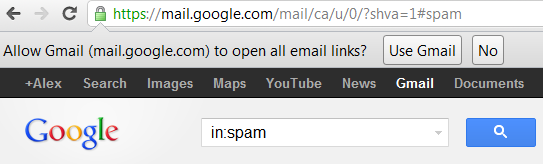
A few months after Google Calendar added support for handling webcal: links in Chrome, Gmail can now become the default handler for mailto: links. If you open Gmail in Google Chrome, you'll see an infobar at the top of the page that asks if you "allow Gmail to open all email links". Just click "use Gmail" and all the mailto: links (like admin@google.com) will open using Gmail, instead of a native mail client like Outlook or Thunderbird.
"Chrome allows web services to ask if you'd like to use them to open certain links. While most links generally take you to another page, some links can open programs and perform other actions. For example, mailto: links can open your email program and webcal: links can add events to your calendar program. These links are referred to as protocols and the programs they use are called handlers. Many web services these days, including Gmail and Google Calendar, can act as handlers," explains Google.
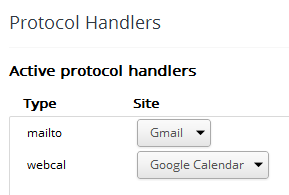
To edit protocol handlers in Chrome, open the settings page, go "under the hood", click "Content settings" and then "manage handlers". Another option is to open a new tab and paste this in the address bar: chrome://settings/handlers. By default, you'll see an almost empty page with no active handler. You can add protocol handlers from the sites that support this feature: Gmail, Google Calendar (and other services in the future).
Chrome is a little late to the party: Mozilla added support for protocol handlers in Firefox 3, back in 2008 and you can set Gmail as default handler for mailto: from the options dialog.
Chrome is clearly the most Apple-like Google product. Many of its features are copied by other browsers: from the simple interface to automatic updates, powerful JavaScript engines, unified address bar and search box, shorter release cycles and much more. When it was released, Chrome's team had a clear vision and no feature was there by accident. While there are many feature requests, Chrome's team only implements them if they make sense and fit the project.
In an interesting response to Kevin Fox's question about the updated "new tab" button, Chrome's Peter Kasting said that "good design involves hav[ing] a clear and consistent vision for the product which is then informed by user input, not enslaved to it. I think Chrome as a whole shows a remarkable design consistency and focus that Google products as a whole have not always had. I don't think that's an accident. It's a direct result of a process that uses a small group of consistent leaders, rather than endless end-user trials of everything, to make decisions."
Glen Murphy, Chrome's design lead, makes it more obvious: "We're trying to sculpt Chrome down to the perfect browser, and sometimes that means making painful consistency changes in aid of that long-term vision. While we want to minimize disruption for existing users, most people on earth haven't used Chrome, and we have to make the best and most awesome browser possible for them."
Chrome is the browser that has great default options, few settings and an interface that hasn't changed all that much over the years because it was carefully thought out and reduced to the essence. Just like the iPhone and its OS.
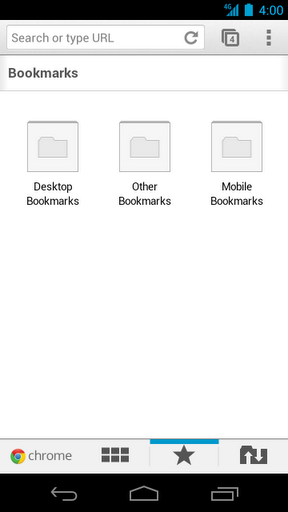
Many people wondered why Android's built-in browser is not called Chrome. One of the reasons is that Android's browser doesn't have many of the features of the desktop browser: data sync (bookmark sync is available in Android 4.0), extensions, themes, apps. Another reason is that Android's browser is updated less frequently than the Chrome browser because it's included in the operating system. Most OEMs ship their own browsers, so not many people use the stock Android browsers.
Now Chrome is available for Android 4.0 and it won't replace the standard browser on your device. "Like the desktop version, Chrome for Android Beta is focused on speed and simplicity, but it also features seamless sign-in and sync so you can take your personalized web browsing experience with you wherever you go, across devices," explains Google.
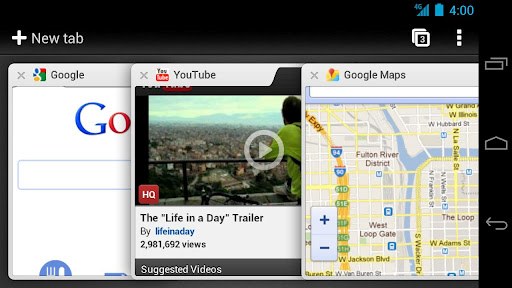
Chrome for Android brings a new gesture for navigating to the next tab (flick instead of Ctrl+Tab), support for page prerendering (used by Google Search to fetch the top result), incognito mode, link preview and data sync for bookmarks, typed URLs and browser sessions. That means you can open a few tabs in the desktop Chrome, close your computer and continue reading the same pages on your Android phone or tablet. In addition to these features, Chrome for Android "brings support for many of the latest HTML5 features to the Android platform: hardware-accelerated canvas, overflow scroll support, strong HTML5 video support, and new capabilities such as Indexed DB, WebWorkers and Web Sockets". There's also support for remote debugging.
"Chrome for Android is designed from the ground up for mobile devices. We reimagined tabs so they fit just as naturally on a small-screen phone as they do on a larger screen tablet. You can flip or swipe between an unlimited number of tabs using intuitive gestures, as if you're holding a deck of cards in the palm of your hands, each one a new window to the web," mentions Google.
At the moment, Chrome for Android doesn't sandbox tabs and there's no support for Safe Browsing, but these features could be added in the feature.
You can only try Chrome for Android if your phone runs Android 4.0 (you're using Galaxy Nexus, Nexus S, Transformer Prime or a different device with a custom ROM). Another limitation is that Chrome for Android is only available if you're in the US, Canada, UK, France, Germany, Spain, Australia, Japan, Korea, Mexico, Argentina, Brazil, but I'm sure you can use Market Enabler or the .apk linked here to bypass this restriction.
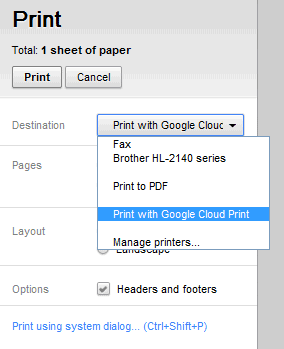
1. The print preview page now integrates with Cloud Print. That means you can now print any webpage or PDF file using Cloud Print.
While Cloud Print makes more sense on a mobile phone or a tablet, you can also use it on your computer. The printer management page lets you share printers with your contacts just like you would share files in Google Docs. You're no longer limited to sharing a printer with other computers on the same network.
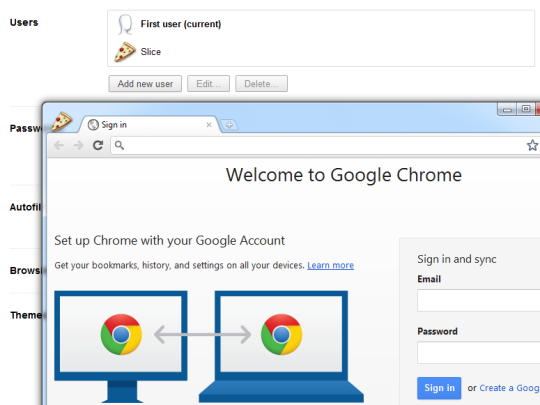
2. Chrome now has an interface for creating profiles. Go to Options > Personal Stuff and click "Add new user". After creating a new profile, Google asks you to log in using a Google Account and sync your settings and data, but this is optional. You can change the profile name and the icon that's always displayed in the top-left corner of the window. Profiles work just like the incognito mode, except that the data is saved and you can use multiple profiles at the same time. Just click the profile icon and you can open a new window in a different profile.
It's important to keep in mind that profiles can't be password-protected and they aren't intended to replace the user accounts from your operating system. Profiles are useful if you need different settings, bookmarks, apps at work, at school or in your past time. You can create a profile for games, install your favorite games from the Chrome Web Store, download a game-related theme and add some bookmarks.
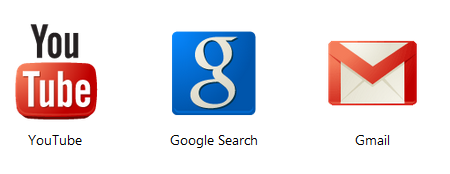
3. YouTube, Gmail and Google Search are the apps that are automatically added when you install Chrome or create a new profile. The Search app was about to be removed because the icon was ugly.
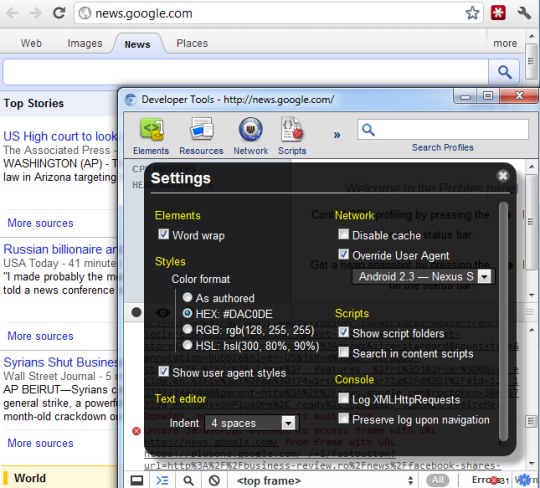
Changing the user agent of a browser is sometimes helpful if you're visiting a site that doesn't work well in your browser or if you're a developer and you want to test a site. Until recently, changing the user agent required installing an extension, opening about:config or adding a command-line parameter.
Now that browsers started to include powerful developer tools and even Internet Explorer has a built-in user agent editor, Chrome added a similar feature. It's only available in Chrome 17 (Dev Channel / Canary) right now.
Here's how to change the user agent:
1. open the Developer Tools (Ctrl+Shift+I on Windows/Linux, Command - Option - I on Mac OS X) 2. click the "settings" icon at the bottom of the window 3. check "override user agent" and select one of the options (Internet Explorer 7/8/9, Firefox 4/7 for Windows/Mac, iPhone, iPad and Nexus S running Android 2.3). You can also select "other" and enter a custom user agent.
If you miss Google+ notifications when you're not visiting a Google page, you can now install a Chrome extension and always get the latest updates.
"Whenever you have a new notification (for example, when someone adds you to a circle or shares a post with you), the extension button will turn red and show you how many updates are waiting for you. Once you click the button, a window will drop down showing you all of your most recent notifications. You can act on notifications right from the extension, whether you're replying to a comment or adding someone back to your circles. That way you can stay up-to-speed with your circles on Google+ no matter where you are on the web," informs Google.
There's also a +1 button for Chrome that lets you +1 a page and share it with your circles.
Chrome 15 brings a few changes and some new features. Here are some of them:
1. A redesigned new tab page inspired by mobile interfaces. There are two "homescreens" for apps and most visited pages, but you can create a new "homescreen" by dragging apps and pages to the bottom bar and selecting the new "homescreen". You can also remove pages and apps by dragging them to the bottom bar and then to trash area ("remove from Chrome"). Any bookmark can now become app: just drag it to the new tab page. This also works for the most visited pages.
2. The extension manager is now a section of the options page and has a new interface. You can now use the inline search box to find extensions. The old interface is displayed if you type chrome://extensions in the address bar, while the new address is: chrome://settings/extensions.
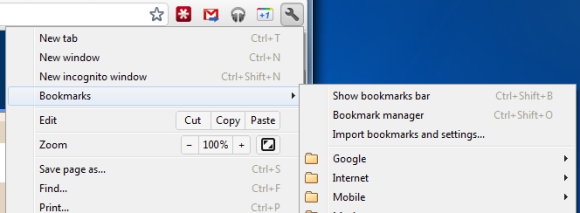
3. Chrome's menu has changed: the bookmarks menu is easier to find and there's a new item for Chrome sync.
4. If you don't like Chrome's print preview page, use a shortcut to open the native print dialog: Ctrl+Shift+P (Cmd-Shift-P for Mac).
As promised, Google's Chrome Web Store has a new interface that uses promotional images and larger screenshots, opens extension pages in overlays and makes it easier to install extensions, themes and apps. Another change is that the new version is a lot faster as it uses AJAX to load extension pages. Infinite scrolling replaces pagination, so you no longer have to click "next".
"Promotional images are your chance to capture users' attention and entice them to learn more. Don't just use a screenshot; your images should primarily communicate the brand," suggests Google in the documentation.
Unfortunately, search results are now terrible, as you can see in the screenshot above. When searching for [Gmail], from the top 10 search results, only 2 extensions and apps are relevant. The top search result for [YouTube] is AdBlock, while the first result for [Google Docs] is FB Photo Zoom. The search algorithm is not good enough and Google made things worse by mixing the results for extensions and apps.
The new interface is only available in Chrome and Chromium, so you can go to https://chrome.google.com/webstore in a different browser to see the old interface.
The latest Dev Channel release of Google Chrome for Chromebooks added two icons to the new tab page. They're similar to the Chrome Web Store icon, but they're for games and music. At the moment, the new icons don't send users to some special pages, but it's likely that they'll be used to promote the games section from the Chrome Web Store and an updated Google Music.
As AllThingsD reports, "Google is finally close to launching a music service with help from the labels". The news was confirmed by Andy Rubin, Google's Senior Vice President of Mobile. "Google is in the very, very early phases of adding consumer products to our portfolio. The media industry didn't see us as that. They saw us a search company," Andy Rubin said, trying to explain why it takes so long to launch a music store and other similar services. At the moment, Google Music is an invite-only service that lets you upload up to 20,000 songs and stream them to any computer, iOS or Android device.
Chrome Remote Desktop is a new Chrome extension that lets you remotely control a computer from your browser. It's the first software that uses a technology code-named "chromoting" and it's especially useful if you have a Chromebook.
The goal of this beta release is to demonstrate the core Chrome Remoting technology and get feedback from users. This version enables users to share with or get access to another computer by providing a one-time authentication code. Access is given only to the specific person the user identifies for one time only, and the sharing session is fully secured.
One potential use of this version is the remote IT helpdesk case. The helpdesk can use the Chrome Remote Desktop BETA to help another user, while conversely a user can receive help by setting up a sharing session without leaving their desk. Additional use cases such as being able to access your own computer remotely are coming soon.
Chrome Remote Desktop BETA is fully cross-platform, so you can connect any two computers that have a Chrome browser, including Windows, Linux, Mac and Chromebooks.
I've installed the extension on a Dell laptop that runs Windows 7 and on a Samsung Chromebook. The extension has more than 17 MB, so you have to wait a little bit until it's downloaded and installed. After installing the extension on my Dell laptop, I clicked the new icon from the new tab page and Chrome Remote Desktop asked me to "grant extended access permissions" to my computer.
Chrome Remote Desktop is a special extension because it can be used to control your computer. It's interesting that the extension uses Google Talk's technology to send messages.
When you decide to share your computer, Remote Desktop generates a code you need to enter on a second computer.
Here's what happens after installing the extension on my Chromebook:
The performance is pretty good, but it depends on your Internet connection and the computers you're using. The extension is especially useful for businesses and it will make Chromebooks even more attractive for companies.
Google Chrome 15 brings some new ways to access your bookmarks. There's a new bookmarks menu below the "new incognito window" option that lets you quickly find your bookmarks. This feature is already available in Chrome 14 (now in beta), but the bookmarks menu is more prominently displayed in Chrome 15.
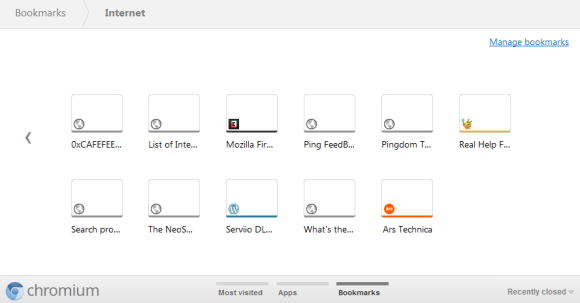
The new tab page no longer includes the bookmarks bar if this feature is disabled. The main reason for removing the bar is that the new tab page now includes a special section for bookmarks, next to the sections for apps and frequently visited pages. Bookmarks are displayed just like apps, but the thumbnails are much smaller and they seem to be blank, at least for now. You can now drag bookmarks to the list of apps, reorder them or remove them without using the bookmark manager.
While there are many advantages to the new interface for browsing and managing bookmarks, the thumbnail view is not very useful if you have a lot of bookmarks in a folder. Page titles are truncated to the first 10-15 characters and it's not always easy to find a bookmark. A list view is more space-efficient.
Just like Firefox, Chrome doesn't have a smart spell checker. It uses a dictionary and it shows spelling suggestions for the words that aren't included in the dictionary. Chrome's suggestions aren't always great because they ignore the context.
Google has an excellent spell checker that's used in Google Search, but Chrome's team avoided using it because of privacy concerns. It seems that Google changed its mind and some of Chrome's spelling suggestions will be obtained from Google's "did you mean" service.
A future update will "integrate the Spelling service (a.k.a. 'Did you mean') to a context-menu of Chrome so we can see the spell-check result retrieved from the Spelling service. This change sends a JSON-RPC request to the service in the background and updates a context-menu item." Even if the suggestions can't be displayed instantly, they're a lot better than the suggestions generated by Chrome. An even better idea would be to provide an option to spell check the entire text using Google's online service.
Autoupdate is one of Chrome's killer features. It is magical because it continuously updates an entire development platform invisibly, frequently. Supporting it has driven how we structure our development processes. It was also one of Chrome's first features. Delving back into project history long before we launched publicly in 2008, the autoupdate project was one of the very first we started working on. The idea was to give people a blank window with an autoupdater. If they installed that, over time the blank window would grow into a browser. And today, some five years after our autoupdater started updating a mostly blank window that could barely load webpages, it is now an engine for delivering an incredibly sophisticated web technology platform onto our users' computers, which in turn allows web app developers to build amazing new online experiences. I have never seen such an effective platform update mechanism before.
Chrome automatically updates in the background and makes sure that it always has the latest features and bug fixes. You don't longer have to worry about version numbers, the list of features from the latest release and you can no longer decide that it's a bad idea to upgrade to the new version because of an annoying change. Extensions also update in the background and you're always using the most recent versions. That's a great thing for developers, who don't have to support legacy Chrome versions and spend so much time testing their sites and extensions. It's also a great thing for users, who can rely on a secure browser that has the latest security fixes and it's better protected against malware. They can also use the latest Web apps without having to worry about updating their browser.
Chrome's rapid release cycle works well because of the autoupdater. Annoying users with notifications about the new releases makes people delay updating their browser. Some of them will find ways to disable the updater and will continue to use an old version of the browser. Ben Goodger thinks that making the updater invisible is very important:
Chrome's autoupdate system is deceptively simple. I say "deceptively" because as a user it appears completely invisible, but really there are a lot of sophisticated technologies and processes that support it. The key point here is "completely invisible." We have made numerous improvements to the autoupdater over the course of Chrome's life, including one major change a while ago when we sped up the frequency of our releases from once per quarter to one every six weeks. But from a user perspective Chrome is still well.. Chrome.
I'll expand on invisible, because it's important:
The Chrome autoupdater works quietly in the background, never notifying you. If there's an update, it'll download it and prepare it so that the next time you start the browser it's the latest version. Sort of like how the next time you load GMail it's the latest version.
I think the autoupdater is the most important Chrome feature because it's the enabler for the other features. Ever since it was released back in 2008, Chrome has constantly improved, supporting new Web technologies, adding new features to the interface, new APIs for extensions and cutting-edge security features. Without a powerful autoupdater, many Chrome users would still have an outdated version and wouldn't be able to use them. Sometimes, removing choice can dramatically improve a software.
Now you no longer have to wait until your favorite site adds a Google +1 button. If you use Chrome, you can install an extension that lets you +1 any Web page. The extension is developed by Google and it acts just like a +1 button: it shows the number of +1's and it becomes blue if you've already +1'd a page.
An obvious privacy trade-off is that the extension sends the list of the pages you visit to Google's servers, but this information is not associated with your account. "Google doesn’t keep a persistent record of your browsing history as part of the process of showing you a +1 button or otherwise use the fact that you personally have visited a page with the +1 button. Google may keep some information about your visit, usually for about two weeks, to maintain and debug its systems," explains Google.
Almost three years after its announcement, Native Client is almost ready for prime time. It's enabled in Chrome 14, which is now in beta and will reach the stable channel in less than a month.
Native Client is a very complex framework that allows browsers to run native compiled code in a sandbox. Google's goal is to "maintain the OS portability and safety that people expect from web apps", while allowing developers to use their preferred language. Right now, the only supported languages are C and C++ and Native Client only works in Chrome for Windows, Mac and Linux.
"Native Client apps live on the web platform, so you don't need to create separate versions of your app for each operating system. Rather than relying on OS-specific APIs, Native Client apps use Pepper, a set of interfaces that provide C and C++ bindings to the capabilities of HTML5. This means that once you've ported your code to Native Client, it will work across different operating systems, and you only need to maintain one code base. Today Native Client supports the Pepper APIs for 2D graphics, stereo audio, URL fetching, sandboxed local file access (File API), and asynchronous message passing to and from JavaScript. In future releases we will be adding support for hardware accelerated 3D graphics (OpenGL ES 2.0), fullscreen mode, networking (WebSockets and peer-to-peer connections), and much more," informs Google.
Google announced that developers will be able to upload their native apps to the Chrome Web Store once Chrome 14 hits the stable channel. In the meantime, Chrome 14 users can try the examples from this gallery: a pi generator, a sine wave synthesizer and John Conway's Game of Life.
NaCl (Native Client) + Pepper -> a lot of games, business apps, educational apps, image editors and virtual machine software running inside your browser. Suddenly, Chromebooks are no longer that limited.
Launched as a Google Toolbar feature last month, Google Related is now available for Chrome. "Google Related works in the background to find you the most interesting and relevant content on the topics you're currently viewing. For example, if you visit a restaurant's website, Related can show you a map, reviews from Google Places, mentions from across the web and other similar eateries that you might want to try," informs Google.
Google Related is a good opportunity for Google to track all the pages you visit and to offer something useful in return. After all, Google Related is a lot more useful than the PageRank button from Google Toolbar or Internet Explorer's Suggested Sites feature.
The bar is displayed at the bottom of the window, but not for all the pages. If there's not enough information related to the page, you won't see the bar. For example, Google Related is not displayed when you visit CNN's homepage, but it's displayed when you go to a CNN article. Another great thing about Google Related is that it shows various types of content, depending of the page you're visiting. Sometimes you'll see news articles and images, for other pages you'll find maps, local results and in other cases you'll see videos that play without leaving the page.
Google Related would be even better if you could see the related content on-demand (for example, by clicking a button). This way, you would no longer send your browsing history to Google and Google would get less information, so it's quite obvious why Google didn't add this option. Hopefully, Google will release an API for Google Related and other developers will create better extensions and widgets.
Update. Here an interesting quote from the book "I'm Feeling Lucky" by Douglas Edwards, who was Google's director of consumer marketing and brand management until 2005:
To tell you the PageRank of a site, Google needed to know what site you were visiting. The Toolbar sent that data back to Google if you let it, and Google would show you the green bar. The key was "if you let it," because you could also download a version of the toolbar that would not send any data back to Google. The user could make the choice, though Larry and the engineering team believed — and hoped — that most people wouldn't pass up the advanced features just because Google might learn their surfing habits. We're talking free extra data here. While knowing the PageRank of a page might have only nominal value to users, knowing the sites users visited would he tremendously valuable to Google. The PageRank indicator provided a justification for gathering it.
If you don't live in the US, Google likes to think that the localized version of the search engine for your country is the most useful. That's the reason why it redirects you from google.com to google.tld (google.co.uk, google.fr, google.co.jp etc.).
I prefer the google.com version because it has the latest features and search results are a lot better. To switch to google.com and bypass the redirect, you can click "Google.com in English" at the bottom of the homepage or just go to google.com/ncr. The early versions of Google Chrome used to respect my choice and adjusted the search domain after a restart. Now Google Chrome no longer checks the Google cookie to see if I changed the domain and only determines the right domain based on my IP.
One way to solve this issue is to create a custom search engine for google.com, but the downside is that you lose the search suggestions. A better way is to edit a settings file. Here's how to do that:
1. Close all Chrome windows.
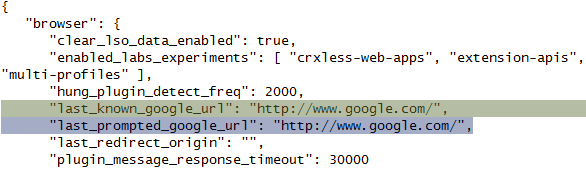
2. Go to Chrome's user profile directory (for example, in Windows Vista and Windows 7 the path is: %LOCALAPPDATA%\Google\Chrome\User Data\).
3. Open the file Local State in a text editor like Notepad, TextEdit or gedit.
4. Find the two lines that include "last_known_google_url" and "last_prompted_google_url" and change the Google URL from "http://www.google.tld/" (.tld=.co.uk, .fr, .co.jp etc.) to "http://www.google.com/" or any other Google domain.
5. Save the text file and restart Chrome.
6. If you see an infobar that asks if you want to switch to your local domain or keep google.com, choose the second option.
This should works even if you want to change Google's domain from google.es to google.pt, from google.be to google.fr or any other combination. If you live in Portugal, but you'd like to use Google Spain and don't know how to change the country in Google Chrome, this trick should be helpful.